> ## Documentation Index
> Fetch the complete documentation index at: https://docs.cloudcruise.com/llms.txt
> Use this file to discover all available pages before exploring further.
# Overview
> Change input variables, edit the workflow graph and more
For some workflows, you might want to refine the automation graph or input variables the builder agent has generated. For that we offer a UI.
## Edit Graph
The main steps of your business process are captured in the automation graph. A graph consists of nodes and edges. Nodes are predefined actions that you instruct our agent to take such as clicking, typing or making a decision. You can add nodes by right-clicking on the canvas and connect them with each other by drawing an edge between them.
### Node Types
The workflow editor provides various node types to automate business processes through a graph-based interface.
Action Nodes handle direct interactions like `Navigate`, `Click` or `ExtractDatamodel` (structured data extraction).
Control Flow Nodes include `BoolCondition` for branching logic and `Loop` for repeated operations over arrays or ranges.
Data Nodes such as `Transform` clean, derive, or reshape values between nodes without touching the browser.
Specialized Nodes cover advanced scenarios like `Tfa` (two-factor authentication), `FileUpload`/`FileDownload` (file management) or `UserInteraction` (human-in-the-loop).
### Execution Types
Nodes can use different execution strategies:
* **STATIC** (UI: "Static"): Uses explicit XPATH selectors for deterministic targeting
* **LLM\_VISION** (UI: "AI (Screenshot)"): Uses AI to do an action or make a decision based off a screenshot. If the target element is not visible, the model may return a scroll action—this is retried up to 15 times before failing
* **LLM\_DOM** (UI: "AI (HTML)"): Leverages AI to extract elements in the DOM structure (for ExtractDatamodel only)
* **COORDINATES** (UI: "Coordinates"): Uses specific x,y screen coordinates to perform an action (for Click and InputText)
* **PROMPT** (UI: "AI (Context)"): Uses AI and the workflow run context to make a decision or extract data (for ExtractDatamodel and BoolCondition)
### Writing Good XPath Selectors
For **Click**, **Input Text**, and **Input Select** actions using `STATIC` execution, the XPath selector **must match exactly one element** on the page. The run will fail if the selector matches zero elements (element not found) or more than one element (ambiguous selector).
A good XPath uniquely identifies an element by prioritizing semantic attributes like @id, @name, or @data-\* values that are human-readable and stable, or by matching visible text using normalize-space() for reliability.
It should be robust against minor DOM changes by avoiding non-semantic class names, scrambled IDs, and unnecessary positional indices, instead anchoring to meaningful nearby elements like labels or headings when structural context is needed.
### Tips and Tricks
* Use descriptive names for each node action. These are important context for the maintenance agent during recovery.
* Leverage LLM execution types when static selectors get too complex
* Use STATIC execution when possible for speed and reliability
### Keyboard Shortcuts
The workflow editor supports the following keyboard shortcuts for efficient editing:
| Shortcut | Action |
| ---------------------- | ------------------- |
| **⌘/Ctrl + K** | Search for nodes |
| **⌘/Ctrl + Z** | Undo |
| **⌘/Ctrl + Shift + Z** | Redo |
| **⌘/Ctrl + Y** | Redo (alternative) |
| **⌘/Ctrl + C** | Copy selected nodes |
| **⌘/Ctrl + V** | Paste nodes |
## Variables
Variables allow you to use dynamic data throughout your workflow. They are referenced using double curly braces: `{{variable_path}}`.
### Variable Sources
| Source | Path | Description |
| --------------------- | ------------------- | --------------------------------------------------------------------------------------------------------------------------- |
| **Input variables** | `context.inputs.*` | Data passed when starting the workflow run (e.g., `{{context.inputs.order_id}}`) |
| **Extracted data** | `context.*` | Data extracted during workflow execution using ExtractDatamodel or ExtractNetwork nodes (e.g., `{{context.customer_name}}`) |
| **Runtime variables** | `context.runtime.*` | Loop iteration values (e.g., `{{context.runtime.current_order}}`) |
### Where Variables Can Be Used
Variables can be used in most node parameters:
* **Text input**: Type dynamic values (e.g., `{{context.inputs.username}}`)
* **XPath selectors**: Build dynamic selectors (e.g., `//tr[@data-id='{{context.order_id}}']`)
* **URLs**: Navigate to dynamic pages (e.g., `https://app.example.com/orders/{{context.inputs.order_id}}`)
* **Prompts**: Include context in AI prompts (e.g., `"Find the row for customer {{context.customer_name}}"`)
* **Data model field names**: Use dynamic keys in extraction schemas
### Data Transformation
Variables can be transformed using [JSONata](https://jsonata.org/) expressions. For example, to convert a date from `YYYY-MM-DD` to `MM/DD/YYYY`:
```
{{$fromMillis($toMillis(context.inputs.date, "[Y0001]-[M01]-[D01]"), "[M01]/[D01]/[Y0001]")}}
```
## Edit Inputs & Outputs
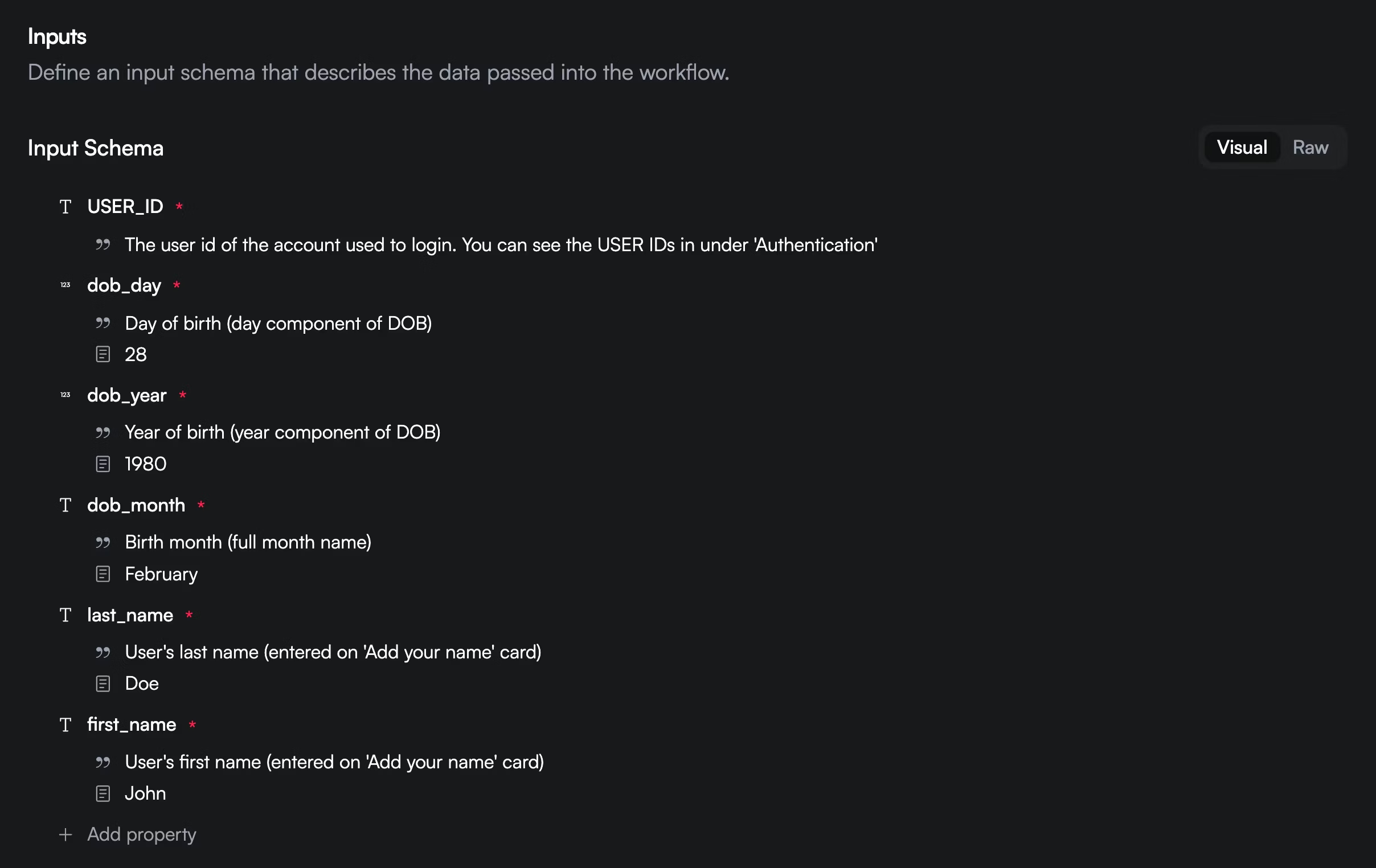 All workflows are parameterized with inputs. You can access these variables with `{{context.inputs.my_variable}}`. All the data that is extracted during runtime is returned in the `execution.success` webhook payload.
If you only want a subset of this returned, you can specify an optional output schema.
### Example: Date Transformation
Here's how to use a transformed date variable in an Input Text node:
```json theme={null}
{
"id": "ae4a223f-645e-4dae-b09c-40168b3629e3",
"name": "Type Date",
"description": "\n",
"parameters": {
"selector": "//input[@id='date']",
"execution": "STATIC",
"text": "{{$fromMillis($toMillis(context.inputs.date, \"[Y0001]-[M01]-[D01]\"), \"[M01]/[D01]/[Y0001]\")}}",
"wait_time": 25000
},
"action": "INPUT_TEXT"
}
```
All workflows are parameterized with inputs. You can access these variables with `{{context.inputs.my_variable}}`. All the data that is extracted during runtime is returned in the `execution.success` webhook payload.
If you only want a subset of this returned, you can specify an optional output schema.
### Example: Date Transformation
Here's how to use a transformed date variable in an Input Text node:
```json theme={null}
{
"id": "ae4a223f-645e-4dae-b09c-40168b3629e3",
"name": "Type Date",
"description": "\n",
"parameters": {
"selector": "//input[@id='date']",
"execution": "STATIC",
"text": "{{$fromMillis($toMillis(context.inputs.date, \"[Y0001]-[M01]-[D01]\"), \"[M01]/[D01]/[Y0001]\")}}",
"wait_time": 25000
},
"action": "INPUT_TEXT"
}
```