
What you can do
Understand what failed
The Maintenance Agent evaluates more than the raw error message. Depending on the failure, it can use the error screenshot, visible page state, DOM and selector signals, current URL, failing step, recent actions, context from successful runs, and patterns from previous failed runs. It also learns from recovery outcomes and can apply site-specific knowledge about recurring timing, selector, popup, validation, login, and outage behavior. The resulting category, sub-type, and explanation are available in the Retrieve Run Results response asllm_error_category, llm_error_sub_type, and llm_error_description. Terminal failures also include them in the execution.failed webhook.
Error-classification matrix
Historical runs may retain legacy category names (e.g.
ACCOUNT_LOGGED_OUT, INCORRECT_FORM_INPUTS), which now map to AUTHENTICATION_ERROR and INCORRECT_INPUTS. Recovery routing continues to accept supported legacy values, so existing error-code mappings do not need to be rewritten.Recover automatically
Popup Recovery
Popup Recovery handles unexpected dialogs, overlays, banners, and other blocking UI states without making consequential choices on your behalf.- For an
ACTION_REQUIREDblocker, the agent confirms that it is visible and uses a targeted action to close it. If the blocker is no longer present, the recovery action safely does nothing. - For a
DECISION_REQUIREDstate, the agent requests input instead of choosing blindly. The request includes failure context and a screenshot when available.
popup_xpaths; see Workflow Settings.
XPath Recovery
XPath Recovery handles eligible Click and Input Text steps when a selector no longer finds the intended element, matches multiple elements, or resolves to the wrong element shape. The agent uses the current page, failed selector, match count, failure subtype, and step description to perform the intended action with AI and resume after the failed step. Recovery is bounded and stops safely when the required page context is unavailable or recent attempts for the same step have repeatedly failed. Enable XPath Recovery in Maintenance Agent Settings. This runtime recovery does not guarantee that the workflow’s stored selector will be permanently replaced.Page Loading Recovery
Page Loading Recovery handles actions that run before the relevant page or component is ready. It applies to Click, Input Text, Input Select, Scroll, and Extract Datamodel nodes.
On the first eligible failure for a step, the agent injects a temporary Delay and retries the action. Attempts are tracked per step and session to prevent loops. If the retry still fails, the agent can retrace to an earlier eligible step when enough run context is available. A full requeue is the final fallback when Service Unavailable Recovery is enabled.
Page Loading Recovery is controlled by Action Timing Recovery (
enable_action_timing_recovery). It is enabled by default but can be disabled at the workspace or workflow level.
Password Update Recovery
Password Update Recovery handles password-expiration and mandatory-rotation screens while keeping the vault credential current.- The agent distinguishes an optional prompt from a mandatory password-change form.
- Optional prompts can be dismissed.
- For a mandatory update, the agent reads the current vault credential and visible password requirements.
- It generates a compatible password, fills the required fields, and submits the form.
- After success, it updates the vault and sends an
execution.password_updatedwebhook. - The workflow resumes using the updated credential.
enable_password_update_recovery through the Workflow API.
Automatic rotation requires exactly one vault credential on the workflow. When multiple credentials are present, CloudCruise does not guess which credential to rotate and sends a notification instead. Provider-backed credentials are written back to the connected provider; see the 1Password integration.
2FA Setup
When a site forces two-factor authentication enrollment mid-run, the failure is classified as action required and handed to the recovery agent, which works the screen using the workflow’s vault credentials. If the agent cannot complete the enrollment, the run reports that action is required. The separateenable_tfa_setup_recovery setting is deprecated and has no effect.
Service and Logged-Out Session Recovery
Service Unavailable Recovery requeues transient external failures such as application errors, HTTP errors, timeouts, and active maintenance windows. A permanently retired service is reported but not retried. Logged-out sessions use the same retry setting. When a site expires or invalidates a session during a workflow, CloudCruise notifies your configured channels and can requeue with stored cookies and browser state cleared, giving the next attempt a clean authentication path. A silent login failure may also receive one bounded retry when retry recovery is enabled and the workflow has succeeded recently. The retry delay follows10 minutes × 2^n, where n begins at 0, with ±20% jitter:
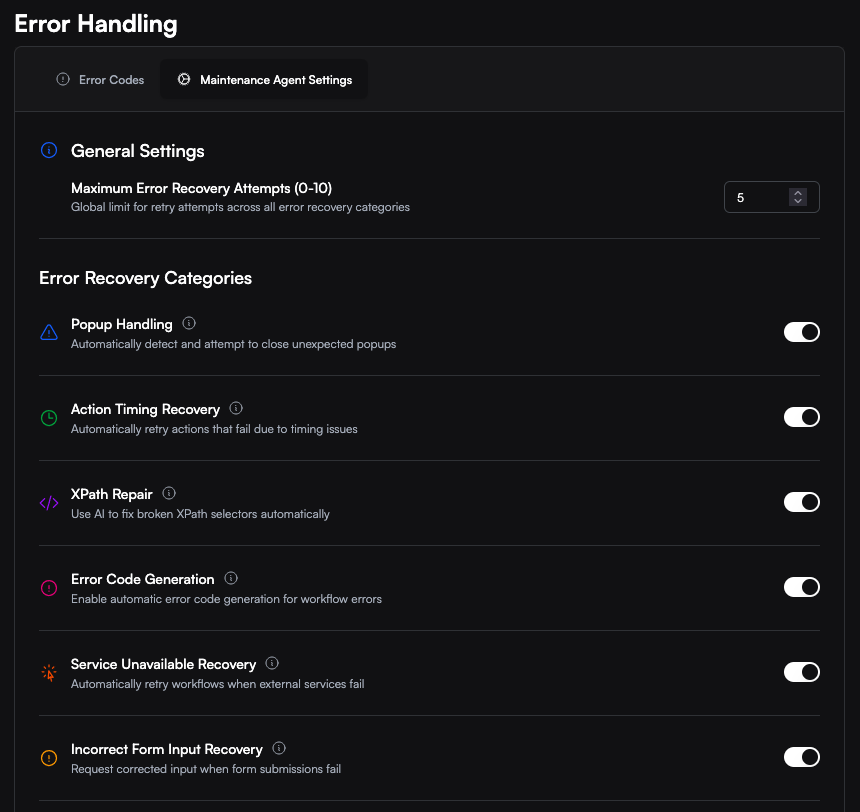
Enable Service Unavailable Recovery and set Maximum Error Recovery Attempts from 0 to 10. While waiting, the run status is
execution.requeued; it does not report execution.failed unless the retries run out. The corresponding webhook includes the retry attempt and scheduled execution time. See Run Statuses.
Ask for help safely
Request New Input
Request New Input lets your external agent or automation correct data without restarting the entire run. It is triggered by an approved error code configured with Request New Input. A failure classified asINCORRECT_INPUTS does not request new input on its own.
- A matched error code uses Request New Input.
- CloudCruise sends an
execution.input_requiredwebhook containing the session ID, current inputs, error details, timeout, and screenshot when available. - Your system calls
POST /run/{session_id}/new_input_variableswith corrected values. - CloudCruise resumes from the relevant step in the executed workflow path.
- If no response arrives before the configured timeout, the run follows the normal failure path.
Consequential popup decisions
Decision-required popups use the same input-required lifecycle instead of being dismissed automatically. The webhook provides the current inputs, failure context, timeout, and a screenshot when available so your system can provide corrected values before the workflow resumes.Repair the workflow
Automatic recovery keeps the current run moving. When a workflow needs a permanent change, the run details page provides repair tools for members with the appropriate permissions:- Manual XPath correction lets you review a suggested selector against the captured DOM and save a corrected workflow version.
- Edit Workflow opens the workflow directly for manual changes.
- Fix with Builder Agent starts an interactive repair session with the failed workflow, failing step, and run inputs already selected.
- Adopt fix with Builder Agent may appear to workspace admins for eligible repeated popup recoveries. Dismissible popups require a validated reusable selector; decision-required popups are handed to the Builder Agent without pinning a choice automatically.
Control recovery behavior
Workspace settings establish the recovery controls available in the dashboard. Workflow settings let you tailor those controls for an individual workflow.
See Workflow Settings for the complete API-field reference.
See what the agent accomplished
Run details distinguish failures that were recovered from failures that still need intervention. Recovered rows show the affected step and can link to the corresponding point in the run video when a recording is available. The Retrieve Run Results response includes:was_recovered— whether at least one Maintenance Agent recovery succeededrecovered_error_ids— the recovered error IDs, correlated with the response’serrorsarray
Eligible organizations may also receive a monthly recap summarizing recovered popup blockers, selector failures, outages, slow-loading pages, password updates, and 2FA setup. Delivery depends on organization eligibility and minimum recovery volume.
Improve recovery over time
Node Description Enrichment
Clear step intent helps the Maintenance Agent distinguish selector drift, timing problems, missing prerequisites, and unexpected page states. Node Description Enrichment creates that context for workflows that have it enabled.- The enrichment cycle prioritizes enabled workflows with frequent failures and limited diagnostic context.
- It uses screenshots from a recent successful, non-retried run.
- Eligible steps with missing or short descriptions receive a 2–3 sentence diagnostic description and structured intent.
- Descriptions are saved in a new workflow version and used during future diagnoses.
- A missing or short workflow description can also be generated from the enriched steps.
Error code suggestions
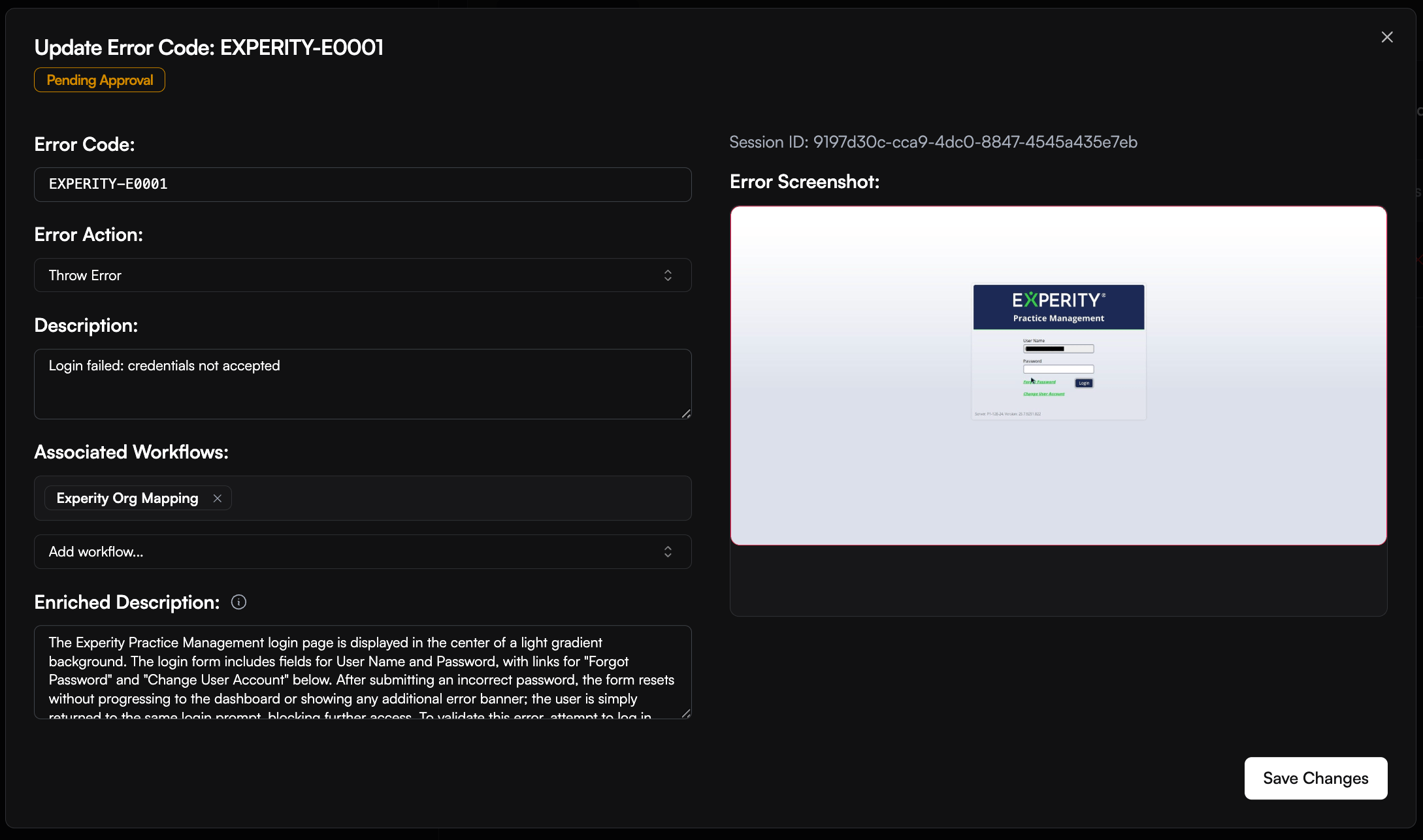
For authentication, password-update, and incorrect-input failures, the Maintenance Agent can compare its diagnosis with your approved workspace error codes. When no code matches and Error Code Generation is enabled, it creates a pending suggestion for review instead of silently approving a new code. After approval under Error Handling > Error Codes, future matching failures can return the code in run results andexecution.failed webhooks. Approved error codes can also define actions such as fail and notify, retry, pause, cancel queued runs using the same authentication, or request corrected input.